Git and GitHub
1. What is Git — why it matters
Git is a version control system. It records the history of every change you make to your code, enabling:
- Rolling back to a previous version when code breaks
- Working on multiple features in parallel without them interfering (branches)
- Team collaboration — multiple people working on the same project
GitHub is a cloud hosting service for Git repositories. Code on your computer is local, GitHub is remote — a backup copy on the internet.
Git ≠ GitHub
Git is a tool that runs on your computer. GitHub is a website that hosts code. You use Git to manage your code, and GitHub to share and back it up.
2. Git workflow
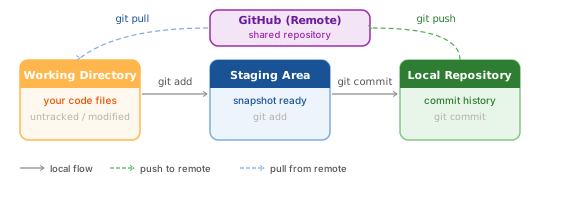
| Area | Role |
|---|---|
| Working Directory | Where you write and edit code |
| Staging Area | A "shopping cart" — choose which changes go into the next commit |
| Local Repository | Commit history on your machine (the .git folder) |
| Remote (GitHub) | Cloud backup on the internet |
3. Install Git
Download
- Go to https://git-scm.com/download/win — the page auto-detects Windows and suggests the correct build.
- Download the
.exefile (about 60 MB).
Install
- Run the
.exe, click Yes to allow changes. - The components screen — leave defaults, click Next through each screen.
- Choosing the default editor — select Notepad or Nano if you're not familiar with Vim, then Next.
- Adjusting your PATH — select Git from the command line and also from 3rd-party software (the middle option) — this is important.
- All remaining screens — keep defaults, click Next until Install, then Finish.
Verify
Open a new Command Prompt or PowerShell:
Example output: git version 2.47.0.windows.1
4. Configure Git for the first time
Before using Git, set your name and email. This information is attached to every commit you create.
Replace "Your Name" and "email@example.com" with your actual name and email (ideally the same email as your GitHub account).
Verify the configuration:
Only needs to be done once
The --global flag saves to ~/.gitconfig and applies to all repositories on this machine. You only need to run these two commands once.
5. Create a GitHub account
- Go to https://github.com, click Sign up.
- Enter your email address, create a password, choose a username.
- Verify your email by clicking the link in GitHub's confirmation email.
- Select the Free plan (sufficient for all learning purposes).
6. Create your first repository on GitHub
- Log in to GitHub, click the + button in the top right → New repository.
- Fill in the details:
- Repository name:
java-practice(or any name you prefer) - Description: optional
- Public / Private: Public if you want to share it, Private if only you should see it
- ✅ Check Add a README file
- Repository name:
- Click Create repository.
GitHub takes you to the new repository page, showing a URL like https://github.com/username/java-practice.
7. Connect your computer to GitHub — SSH Key
Git needs to verify your identity before allowing you to push code to GitHub. The most secure and convenient method is an SSH key.
Step 1 — Check for an existing SSH key
If you see files named id_ed25519 and id_ed25519.pub — you already have an SSH key; skip Step 2.
Step 2 — Generate a new SSH key
Replace email@example.com with your GitHub email.
When prompted:
- Enter file in which to save the key — press Enter to use the default location.
- Enter passphrase — leave empty (press Enter twice) or set a password for extra security.
Step 3 — Add the SSH key to GitHub
Copy the public key content:
Copy the entire line of text starting with ssh-ed25519 ....
On GitHub:
1. Click your profile picture → Settings → SSH and GPG keys.
2. Click New SSH key.
3. Title: a name to identify this machine (e.g. Personal laptop).
4. Key: paste the content you copied.
5. Click Add SSH key.
Step 4 — Test the connection
Successful output:
8. Clone the repository to your machine
Replace username with your GitHub username. This creates a java-practice directory containing the full repository.
9. The daily Git workflow
This is the process you will repeat every day:
Step 1 — Check the current status
This shows: - Which files have been changed (modified) - Which files are in staging (staged) - Which files are not yet tracked (untracked)
Step 2 — Add changes to staging
Prefer specifying files explicitly
git add . is convenient but can accidentally include unwanted files. When starting out, name the files explicitly.
Step 3 — Create a commit
Example:
Write good commit messages
- Start with a verb:
Add,Fix,Update,Remove - Keep it short and clear — someone reading the commit message should understand what you did
- English is the international standard, but your own language is fine when working alone
Step 4 — Push code to GitHub
Step 5 — Pull the latest code from GitHub (when working with others or on multiple machines)
10. Complete example — from start to finish
# Clone the repository
git clone git@github.com:username/java-practice.git
cd java-practice

# Create a new Java file
# ... (write code in your IDE or text editor) ...

# Check status
git status

# Add the file to staging
git add HelloWorld.java

# Create a commit
git commit -m "Add HelloWorld program"

# Push to GitHub
git push origin main
11. .gitignore — exclude files Git should not track
The .gitignore file lists files and directories that Git should completely ignore.
Create a .gitignore file in the root of your project:
# Bytecode
*.class

# Build output
target/
out/

# IDE files
.idea/
*.iml
.vscode/
.classpath
.project
.settings/

# macOS
.DS_Store

# Windows
Thumbs.db
Generate .gitignore automatically
The site gitignore.io lets you select your language and IDE and auto-generates the appropriate .gitignore content. Example: select Java, IntelliJ, macOS.
12. Git command reference
| Command | Action |
|---|---|
git init |
Initialize a new Git repository in the current directory |
git clone <url> |
Copy a repository from remote to your machine |
git status |
View the state of working directory and staging |
git add <file> |
Add a file to staging |
git add . |
Add all changes to staging |
git commit -m "msg" |
Create a commit with a message |
git push origin main |
Push commits to the remote main branch |
git pull origin main |
Pull the latest code from remote |
git log |
View commit history |
git log --oneline |
Compact commit history |
git diff |
View unstaged changes |
13. Troubleshooting
Permission denied (publickey)
Cause: The SSH key has not been added to GitHub, or has not been loaded into the SSH agent.
Fix:
error: failed to push some refs
Cause: The remote has commits your local repository doesn't have yet (someone else pushed first).
Fix:
git pull origin main    # pull first
# resolve any conflicts if they exist
git push origin main    # push again
fatal: not a git repository
Cause: You are running a Git command outside a directory that contains a repository.
Fix: Use cd to enter the correct directory containing .git, or run git init to create a new repository.
Next: Maven and Hello World — create a standard Java project with a build tool.