Maven and Hello World
1. What is Maven
Maven is a build tool for Java. It solves three major problems every Java project faces:
| Problem | Without Maven | With Maven |
|---|---|---|
| Managing libraries | Manually download each .jar file and copy it to the project |
Declare the library name in pom.xml, Maven downloads it automatically |
| Building the project | Type long javac commands with dozens of parameters |
mvn compile — a single command |
| Project structure | Everyone arranges folders however they like | A standard structure anyone can understand immediately |
The standard Maven directory structure
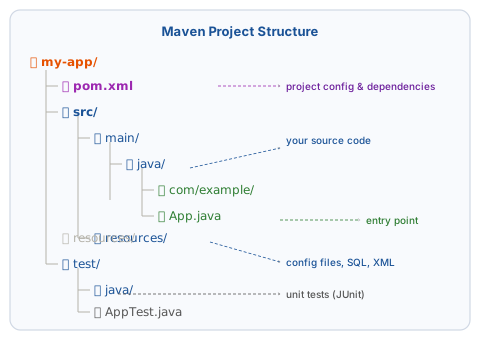
my-app/
├── pom.xml                          ← project config and dependencies
└── src/
    ├── main/
    │   ├── java/
    │   │   └── com/example/
    │   │       └── App.java         ← main source code
    │   └── resources/               ← config files, SQL, XML
    └── test/
        └── java/
            └── com/example/
                └── AppTest.java     ← unit tests
Golden rule
Java source code goes in src/main/java. Tests go in src/test/java. Never mix them.
2. Install Maven
Download
- Go to https://maven.apache.org/download.cgi
- Under Files, download the Binary zip archive (e.g.
apache-maven-3.9.x-bin.zip).
Extract and configure
- Extract the
.zipfile toC:\Program Files\Apache\maven(create the folder if it doesn't exist). - Set environment variables:
- Press
Windows + R, typesysdm.cpl, press Enter → Advanced tab → Environment Variables. - Under System variables, click New:
- Variable name:
MAVEN_HOME - Variable value:
C:\Program Files\Apache\maven\apache-maven-3.9.x(match your version number)
- Variable name:
- Find the
Pathvariable, click Edit → New, add:%MAVEN_HOME%\bin - Click OK on all dialogs.
- Press
-
Open a new Command Prompt and verify:
Example output:
Maven needs JAVA_HOME
Maven uses the JAVA_HOME variable to locate the JDK. If mvn -version reports a Java-related error, revisit the JAVA_HOME setup in the Install JDK 21 lesson.
3. Create your first Maven project
Option 1 — Create from IDE (IntelliJ IDEA)
This is the easiest way to get started.
- Open IntelliJ IDEA, click New Project.
- Select New Project (not Maven archetype).
- Fill in the details:
- Name:
hello-world - Location: choose where to save the project
- Language:
Java - Build system:
Maven - JDK:
21 - GroupId:
com.example(your organization/name in reverse domain format) - ArtifactId:
hello-world(project name, auto-filled from Name) - Version:
1.0-SNAPSHOT(keep the default)
- Name:
- Click Create.
IntelliJ creates the project with the full Maven directory structure and opens pom.xml.
Option 2 — Create from the terminal (Maven archetype)
mvn archetype:generate \
  -DgroupId=com.example \
  -DartifactId=hello-world \
  -DarchetypeArtifactId=maven-archetype-quickstart \
  -DarchetypeVersion=1.4 \
  -DinteractiveMode=false
This creates a hello-world/ directory with the standard Maven structure and a sample App.java.
4. Understanding pom.xml
pom.xml (Project Object Model) is the heart of a Maven project. Open it:
<?xml version="1.0" encoding="UTF-8"?>
<project xmlns="http://maven.apache.org/POM/4.0.0"
         xmlns:xsi="http://www.w3.org/2001/XMLSchema-instance"
         xsi:schemaLocation="http://maven.apache.org/POM/4.0.0
             http://maven.apache.org/xsd/maven-4.0.0.xsd">
    <modelVersion>4.0.0</modelVersion>

    <!-- Unique project identifier -->
    <groupId>com.example</groupId>
    <artifactId>hello-world</artifactId>
    <version>1.0-SNAPSHOT</version>

    <properties>
        <!-- Java version used for compilation -->
        <maven.compiler.source>21</maven.compiler.source>
        <maven.compiler.target>21</maven.compiler.target>
        <project.build.sourceEncoding>UTF-8</project.build.sourceEncoding>
    </properties>

    <dependencies>
        <!-- Add external libraries here -->
    </dependencies>
</project>
| Tag | Meaning |
|---|---|
groupId |
Organization/person identifier, usually reverse domain (com.example) |
artifactId |
Project name (hello-world) |
version |
Current version (1.0-SNAPSHOT = under development) |
maven.compiler.source |
Java version used to write the code |
maven.compiler.target |
JVM version to run on |
dependencies |
List of external libraries required |
5. Write the Hello World program
Open (or create) App.java in src/main/java/com/example/:
package com.example;

public class App {
    public static void main(String[] args) {
        System.out.println("Hello, World!");
        System.out.println("Java version: " + System.getProperty("java.version"));
    }
}
Line-by-line explanation
| Line | Explanation |
|---|---|
package com.example; |
Declares the package — groups related classes. Must match the directory structure. |
public class App |
Class declaration. The class name must match the filename (App.java). |
public static void main(String[] args) |
Entry point — the JVM looks for this method to start execution. |
System.out.println(...) |
Prints a line to the screen with a trailing newline. |
6. Build and run
From IntelliJ IDEA
Click the green ▶ Run button next to the main method, or press Shift + F10.
The Run panel at the bottom shows:
From the terminal
From the project root directory (where pom.xml is located):
# Compile the entire project
mvn compile

# Run the program
mvn exec:java -Dexec.mainClass="com.example.App"
Or package it into a .jar and run it:
7. Important Maven commands
| Command | Effect |
|---|---|
mvn compile |
Compile source code in src/main/java |
mvn test |
Compile and run all tests in src/test/java |
mvn package |
Compile, test, and package into a .jar in the target/ directory |
mvn clean |
Delete the target/ directory (old build output) |
mvn clean package |
Delete old build and produce a fresh one |
mvn install |
Build and install into the local Maven repository (~/.m2) |
Maven build lifecycle
When you run mvn package, Maven automatically runs all preceding phases (validate, compile, test) before reaching package.
8. Adding external libraries (dependencies)
Example: adding Gson (Google's JSON library):
-
Find the dependency on Maven Central — the central repository for all Java libraries:
https://mvnrepository.com/artifact/com.google.code.gson/gson -
Copy the XML snippet and paste it into the
<dependencies>section ofpom.xml:
<dependencies>
    <dependency>
        <groupId>com.google.code.gson</groupId>
        <artifactId>gson</artifactId>
        <version>2.11.0</version>
    </dependency>
</dependencies>
- IntelliJ detects the change and asks Load Maven Changes — click it to download the library.
From the terminal: run mvn compile — Maven downloads Gson into ~/.m2/repository/ and caches it.
- Use Gson in your code:
import com.google.gson.Gson;

public class App {
    public static void main(String[] args) {
        Gson gson = new Gson();
        String json = gson.toJson("Hello, JSON!");
        System.out.println(json); // "Hello, JSON!"
    }
}
9. Troubleshooting
mvn: command not found
Cause: Maven has not been added to PATH.
Fix: Re-check the MAVEN_HOME and Path variables in the installation section. Open a new terminal after making changes.
[ERROR] Source option 5 is no longer supported. Use 7 or later.
Cause: Maven is using a low default Java version that doesn't match the code.
Fix: Add to pom.xml:
<properties>
    <maven.compiler.source>21</maven.compiler.source>
    <maven.compiler.target>21</maven.compiler.target>
</properties>
BUILD FAILURE when running tests
Cause: One or more tests are failing. Maven won't package if tests don't pass.
Temporary fix (skip tests):
Use -DskipTests only temporarily
Skipping tests is a debugging shortcut. In real projects, fix the tests properly.
Cannot resolve symbol in IntelliJ after adding a dependency
Fix: Click File → Invalidate Caches → Invalidate and Restart.
10. Setup complete
Congratulations — you have completed the Environment Setup section! Here is what you now have:
- ✅ JDK 21 installed —
java -versionandjavac -versionboth work - ✅ IDE (IntelliJ / Eclipse / VS Code) installed — you can create and run a Java project
- ✅ Terminal navigation and running Java from the command line
- ✅ Git installed, name/email configured, GitHub connected via SSH
- ✅ Maven installed, project structure understood, program built and run
Next: Java Fundamentals — start learning the Java language.